Language and Editor
CKSP Tools provides language support for *.cksp and *.ksp files and understands both modern CKSP constructs and established KSP workflows. The editor combines syntax and semantic information with workspace indexing, so navigation and completion continue to work across modular projects.
Feature overview
-
Highlighting
TextMate and semantic highlighting for callbacks, functions, structs, namespaces, macros, pragmas, variables, UI controls, modern type annotations, and more.
-
Completion
Suggestions for built-ins, constants, project symbols, types, methods, pragmas, import paths, resource pictures, and
.nckpUI controls. -
Inline documentation
Hover and completion details expose signatures, parameters, and descriptions for built-in KSP commands without opening a separate manual.
-
Navigation
Go to Definition, Find References, Document Symbols, Workspace Symbols, folding ranges, and automatic workspace indexing.
-
Writing assistance
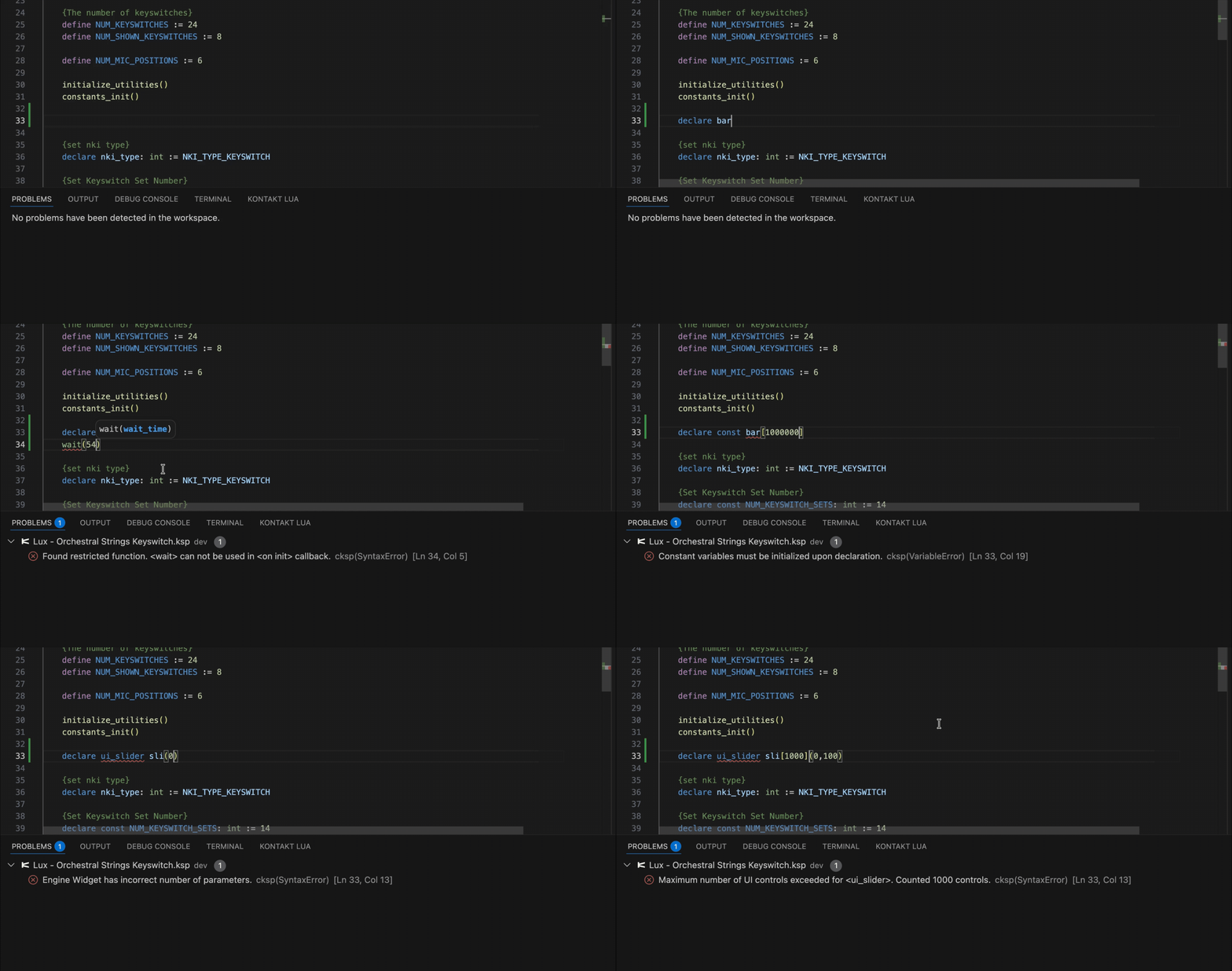
Signature help, parameter inlay hints, automatic block closing, and a compile CodeLens on supported
on initblocks. -
Kontakt file types
Dedicated handling for CKSP/KSP source files, resource scripts, instruments, resource containers, array files, and performance views.
Syntax highlighting
CKSP Tools highlights CKSP and KSP through a custom TextMate grammar and semantic highlighting. Recognized constructs include:
- callbacks such as
on init,on note, andon release - functions, methods, structs, and namespaces
- macros, defines, preprocessor commands, and pragmas
- variables, constants, families, and UI controls
- dot and arrow access
- line comments, block comments, TODO/FIXME markers, and Doxygen/Javadoc-style tags
- type annotations,
bool, ternary expressions, andoverride
Semantic information helps distinguish symbols that share similar syntax but have different roles in the program.
Completion
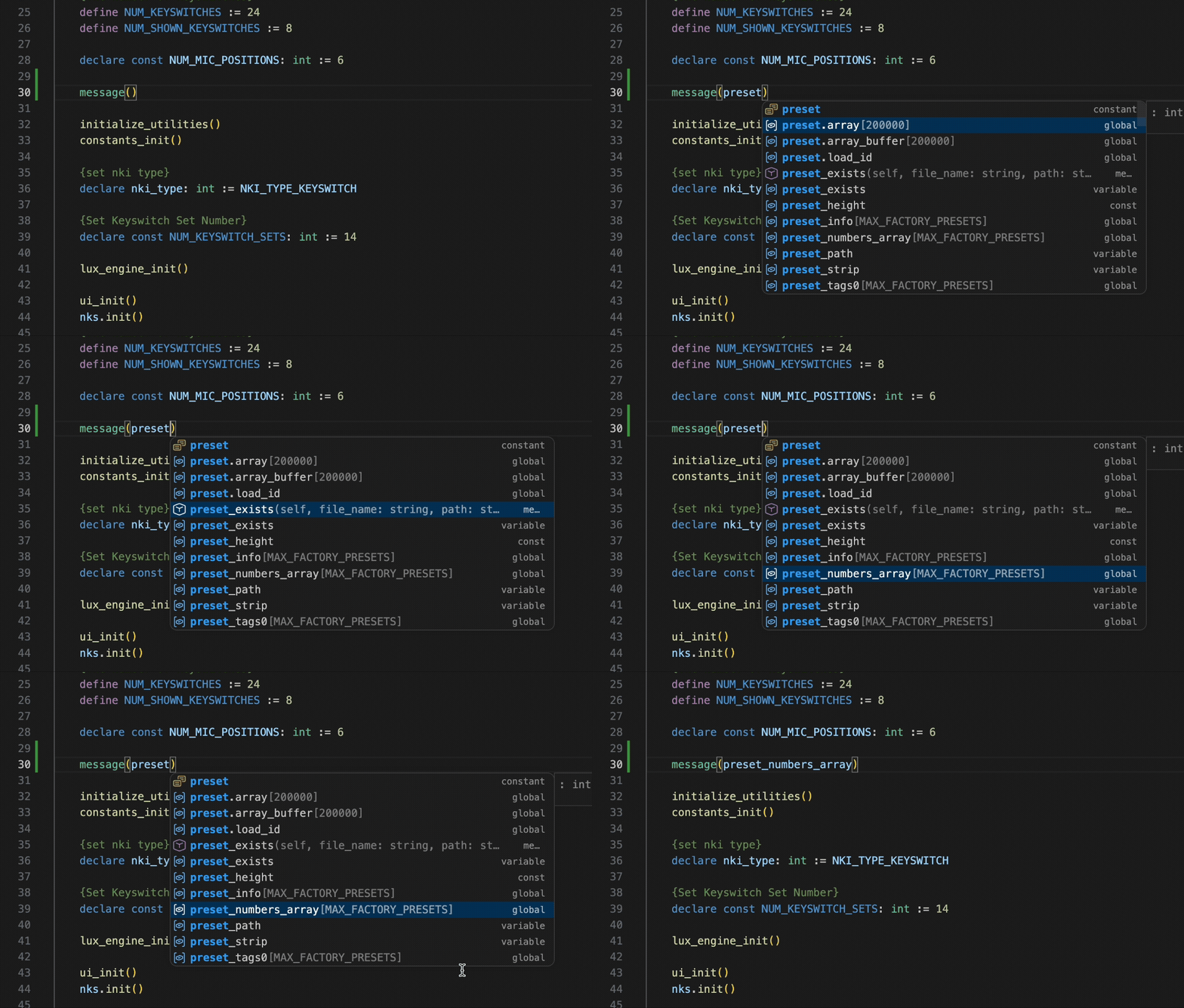
The completion provider combines CKSP/KSP language knowledge with symbols indexed from the current workspace.
Language and project symbols
Suggestions include:
- CKSP and KSP built-in commands and constants
- variables, functions, macros, and defines from the project
- structs, type names, and basic types such as
int,real,bool,string,any, andnumber - pragma commands after
#pragma - methods through dot completion
- UI-control shorthands through arrow completion
Many suggestions contain a signature and documentation. This is especially useful for built-in KSP commands whose parameter order is otherwise easy to forget.
Imports, resources, and performance views
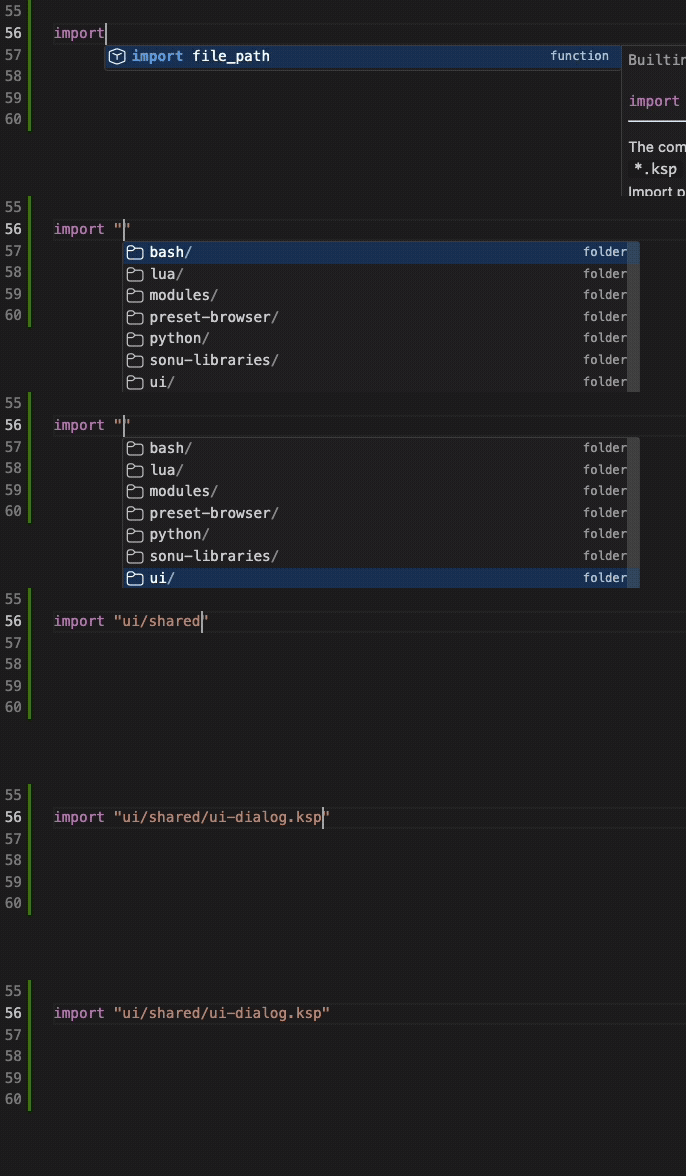
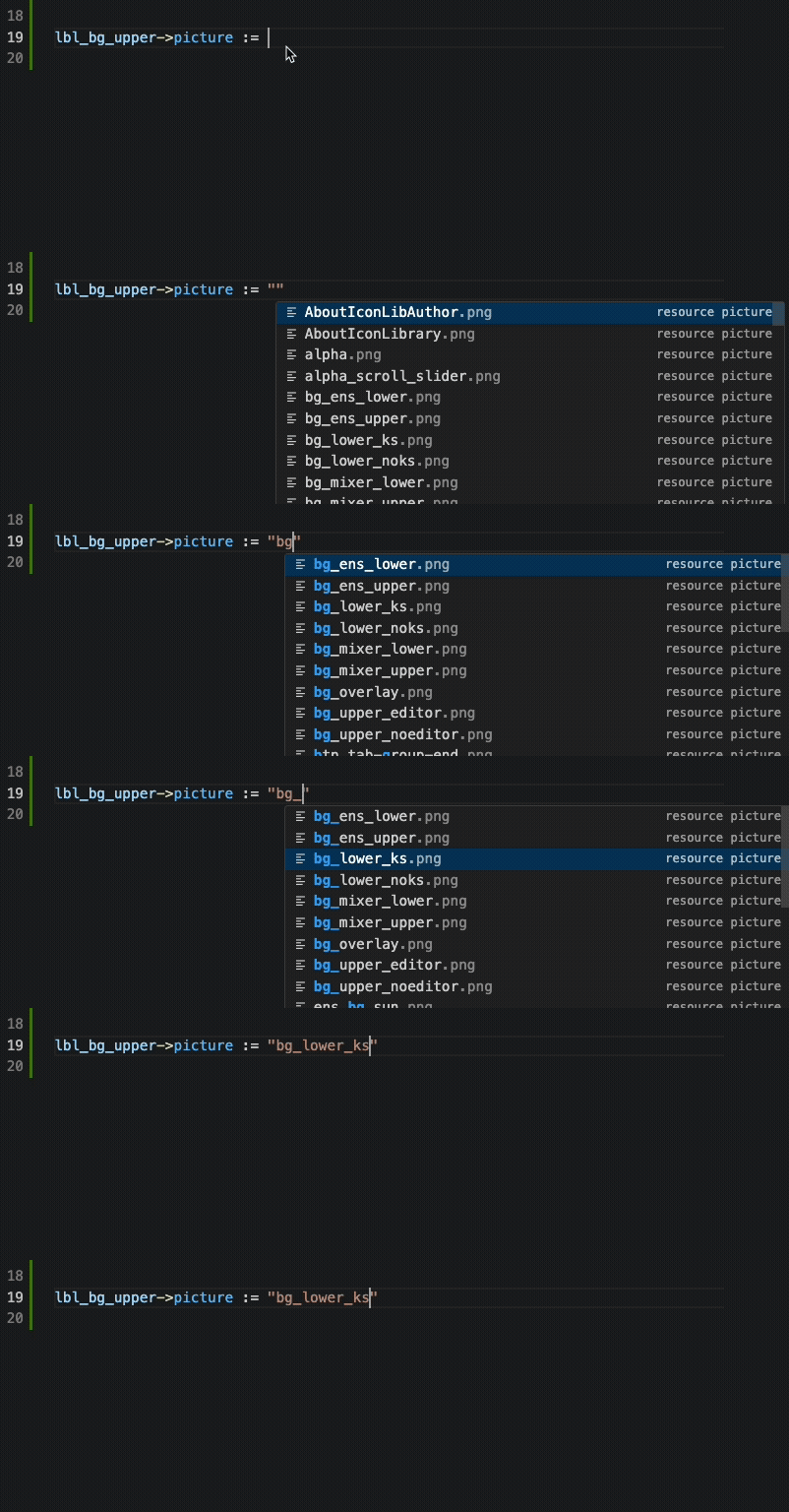
Path completion suggests the next segment while writing imports and other recognized paths. When a valid resource container is selected in the CKSP Sidebar, the extension can also suggest:
- picture files from the resource container
- resource script files
- UI controls read from
.nckpperformance-view files
Resource context required
Resource-picture and .nckp UI-control completion depend on the Resource Container configured for the workspace. See Resources and performance files.
Signature help and hover
Signature help appears while writing function calls and tracks the active parameter. It supports built-in commands and project functions. For method calls, CKSP Tools accounts for the implicit self parameter so the displayed call matches the code you actually write.
Hover information is available for known commands, constants, and project definitions. Built-in KSP documentation is displayed directly in the editor, turning hover into a compact inline reference for engine, UI, group, zone, and MIDI commands.

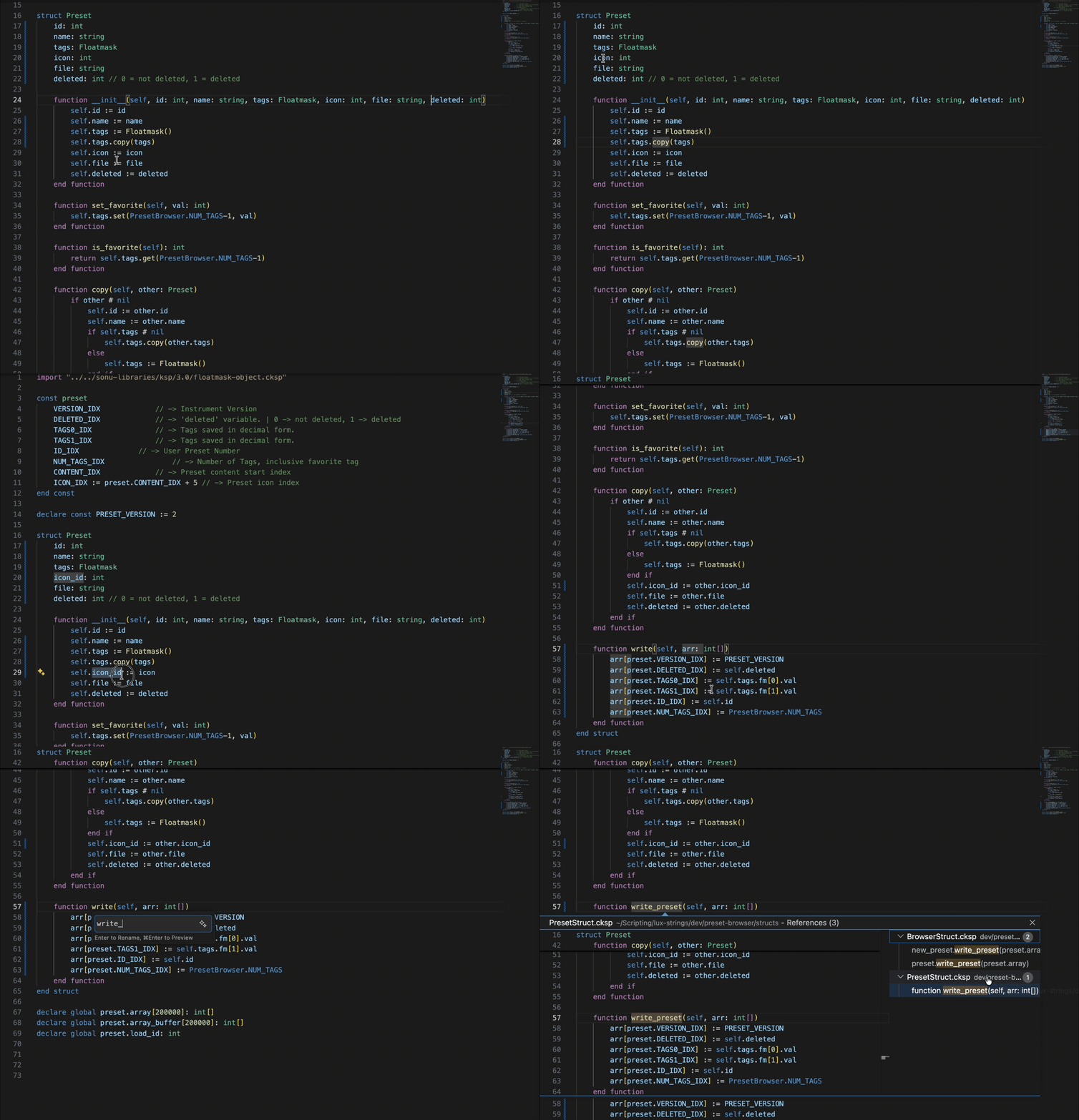
Definitions, references, and symbols
CKSP Tools indexes relevant workspace files and updates its index when files or text change.
Go to Definition and Find References
Definitions and references are available for functions, methods, macros, defines, and other recognized workspace symbols.
Use the normal VS Code gestures:
- Go to Definition: Cmd+Left Button on macOS or Ctrl+Left Button on Windows/Linux
- Find References: use the editor context menu or VS Code's reference command
If navigation appears stale after a large external change, run CKSP: Reindex Workspace from the Command Palette.
Document and Workspace Symbols
- Document Symbols: Cmd+Shift+O
- Workspace Symbols: Cmd+T
- Document Symbols: Ctrl+Shift+O
- Workspace Symbols: Ctrl+T
Document Symbols navigate the current file; Workspace Symbols search the complete project.
Folding, inlay hints, and block closing
Folding
Folding ranges are generated for nested callbacks, functions, structs, namespaces, and other supported blocks. This keeps large scripts navigable without changing their structure.
Inlay hints
Parameter inlay hints make long function and KSP command calls easier to scan. The extension omits redundant hints when an argument already communicates the parameter name clearly.
Configure the behavior with:
| Setting | Purpose |
|---|---|
cksp.enableInlayHints |
Enable or disable parameter hints |
cksp.inlayHintsMinParameterCount |
Only show hints for calls with at least this many parameters |
Automatic block closing
When you press Enter, the OnType Formatting Provider can insert a matching closing block:
Functions, callbacks, and namespaces are supported. CKSP Tools avoids inserting a duplicate terminator when the next suitable line already closes the block.
CodeLens
A Run Compile CodeLens can appear on supported on init blocks. It compiles the current file without moving to the sidebar or opening the Command Palette.
Supported file types
| Extension | Handling |
|---|---|
*.cksp, *.ksp |
Full CKSP language features and compilation |
Resource *.txt |
CKSP language association when recognized as a Kontakt resource script |
*.nki |
Custom Kontakt Instrument editor |
*.nkr |
Recognized as a resource container and offered in Project Settings |
*.nka |
Language configuration and basic syntax highlighting |
*.nckp |
JSON mode, JSON Schema validation, and UI-control completion |
The custom .nki editor and source mappings are described under Kontakt Integration.
Next steps
-
Compile the project
Configure the main file, output path, and compiler version.
-
Connect Kontakt
Launch instruments, inspect messages, and map logs to source files.